How to Add a Person to a Photo and Make It Look Real
To add someone to a photo, give an AI editor the photo, a clear picture of them, and one sentence saying where they go. Here's how to make them fit in.
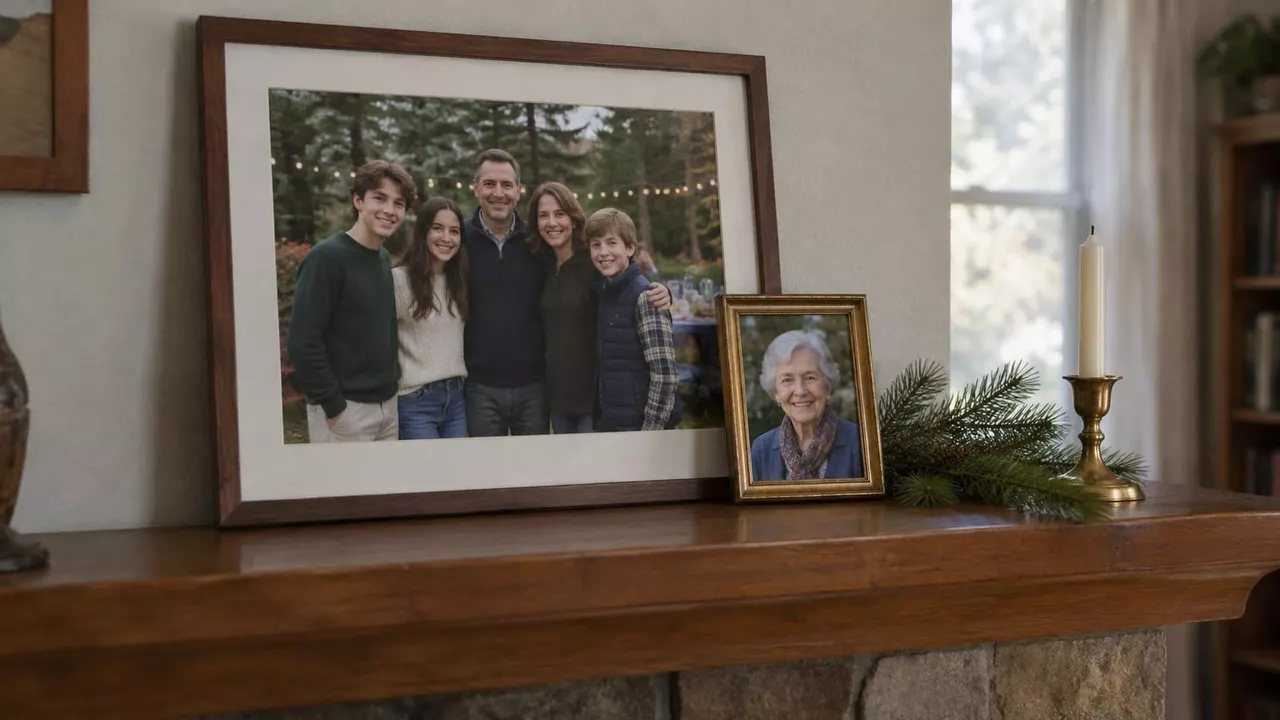
There's always someone missing from the family photo. Your brother had to work that weekend. Grandpa passed the spring before. You'd love one picture with everybody in it.
Here's the short answer to how to add a person to a photo: give an AI editor the photo, a clear picture of the person, and one sentence saying exactly where they go. That sentence does most of the work.
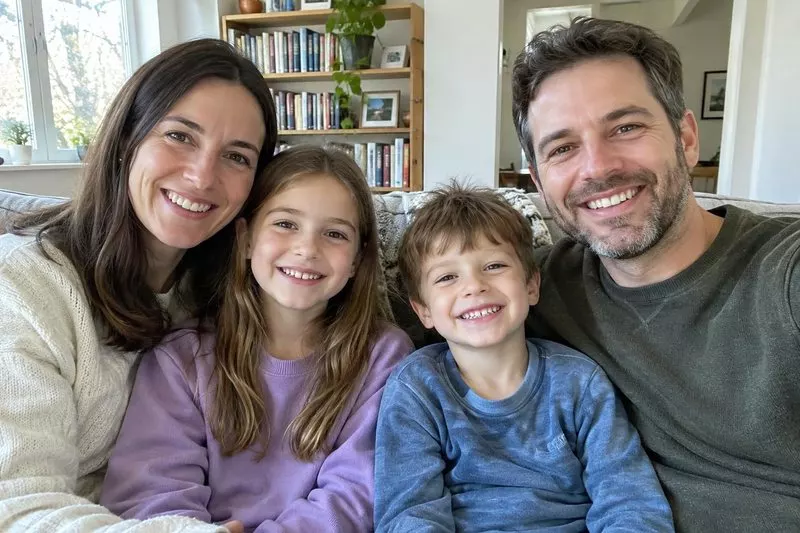
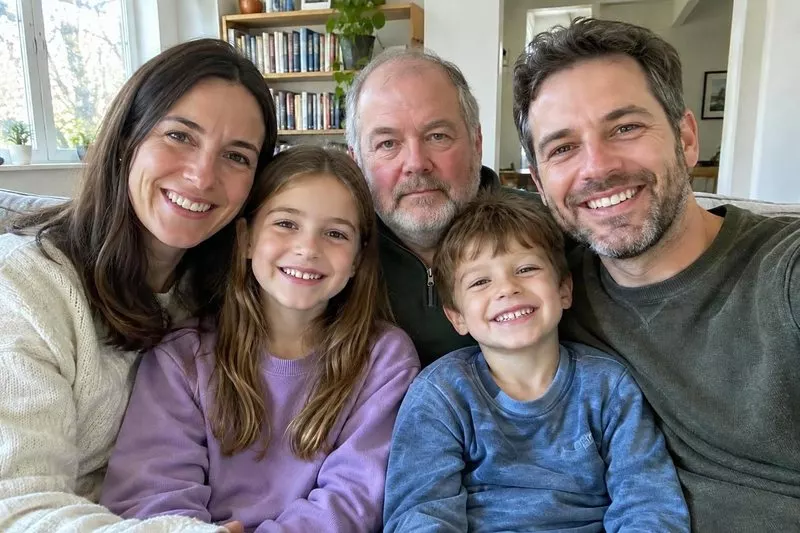 BeforeGrandpa added
Why added people usually look stuck on
The person you're adding was photographed somewhere else, at a different distance, under different light. Drop them in as they are and anyone can tell, even if they can't say why.
It nearly always comes down to three things. Get them right and the person belongs.
Heads get smaller the further back someone is. So the new head should match someone at the same distance, not the person nearest the camera. In a group shot taken at eye height, there's a quick check: everyone's eyes sit on about the same line.
Look at which side of everyone's face is brighter. The new person needs light from that side, and the same kind of light, whether it's soft window light, a warm lamp or a harsh flash. In one of our free-setting tries, Grandpa came out lit from the wrong side of the room. It's a small detail, and the eye catches it fast.
Real people touch things. They sit on the sofa, lean into a shoulder, stand on the sand. Being partly hidden behind someone is one of the strongest hints that a person was really there.
How to add someone to a picture
You need three things.
- The photo. Leave a little room if you can choose. When a frame is packed edge to edge, the AI may squeeze someone out to fit the new person in.
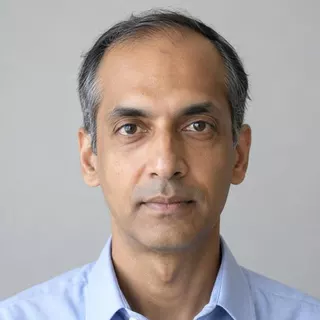
- A clear photo of the person. Sharp, facing the camera, in decent light. If all you have is an old print, fix it first: restore it and make it bigger.
- One sentence saying where. Name who they stand next to or behind, whose head theirs should match, and where the light comes from. End with "don't change anyone else."
The sentence, with blanks
Add the [man/woman] from image 2 to image 1, [sitting/standing] [exactly where, next to whom]. Make [his/her] head about the same size as [someone at the same distance], and light [him/her] with the same [window light from the left / warm lamp light / flash] as everyone else. Keep [his/her] face exactly as in image 2 and don't change anyone else.
In BestPhoto, open the AI image editor, switch on "Use up to 3 photos", upload the group photo first and the person second, paste your sentence and press "Edit photo".
The editor needs a free account, which comes with some free tries on the Normal setting. Our best results came on High, which is on paid plans: it put every person in the right spot at the right size. Normal got it fully right only some of the time, so expect a few runs.
Add someone to your photo
Upload the photo, then the person, and say exactly where they go.
What it looks like when it works
Three of our favorite results, one for each tell. The small square is the photo of the person we uploaded. Drag to see who was added.

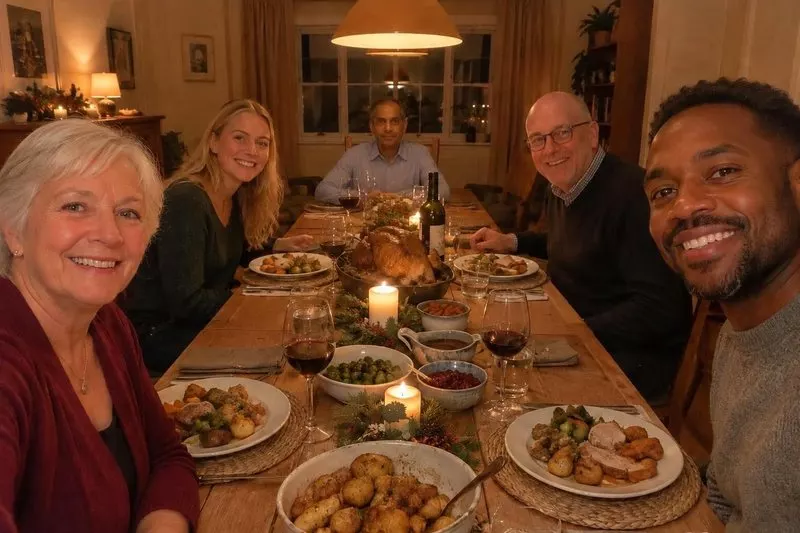 BeforeAfter
What can go wrong, so check every face
The AI redraws the whole picture, not just the new person. Most of the time you can't tell. Sometimes you can.
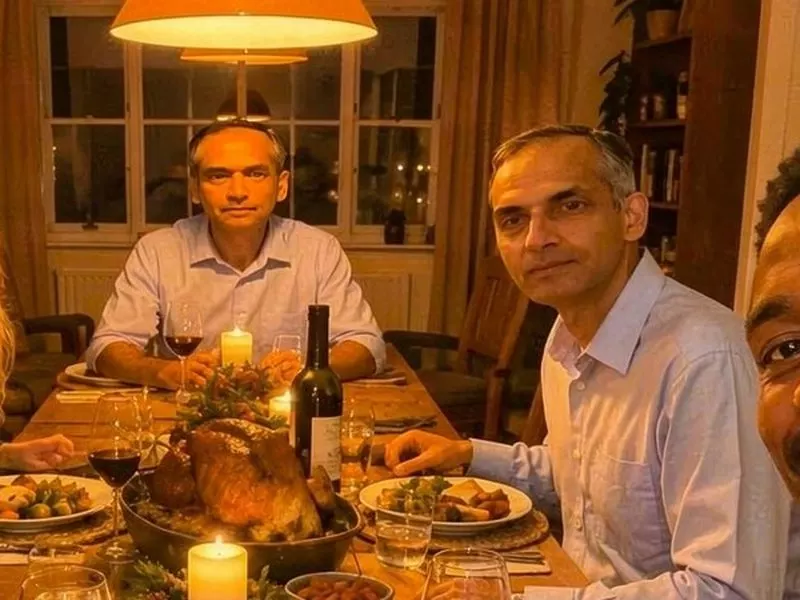
It changed someone else
Asked to add one man, it also gave his face to a diner who was already there. Now there are two of him.
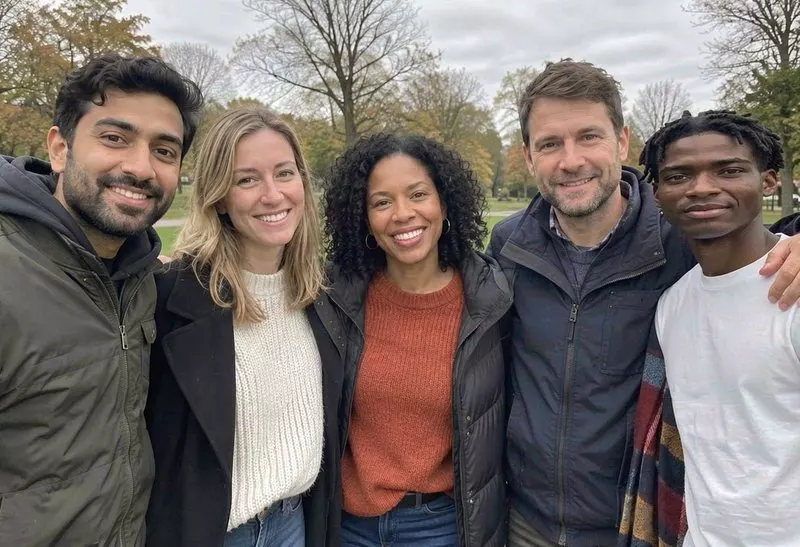
It dropped someone to make room
The photo was already full edge to edge. The new man got in, and the woman in the plaid scarf vanished. Only a strip of her scarf is left.
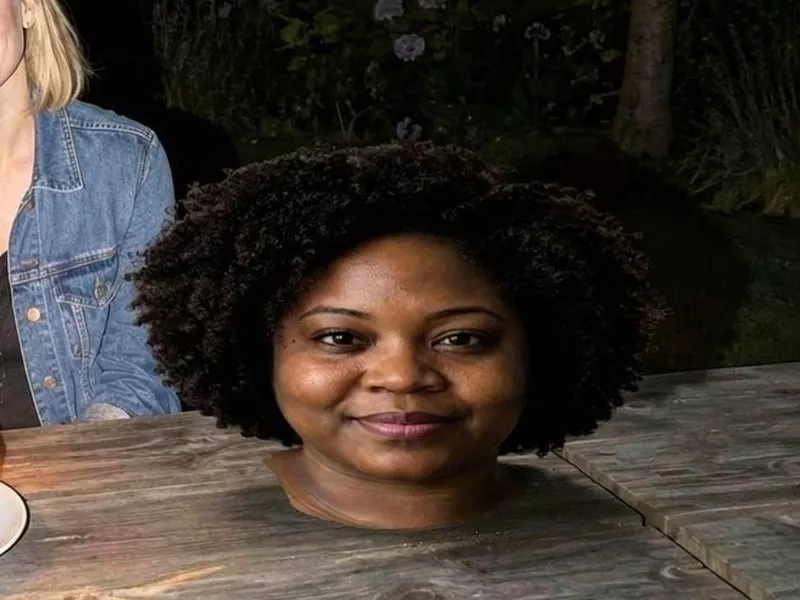
It guessed the spot
With no way to say where, one tool set a head on the picnic table. Telling it where is the whole trick.
Before you print or share, compare every face with the original, not just the new one, and count heads. For people, use the editor, where you can write your sentence. Our quick add-object tool is made for things and has no box for saying where.
If the person has passed away
Putting someone you've lost back into a family photo can be a lovely thing: a print for the mantel, a holiday card, one picture with everyone. A little care keeps it kind.
- Talk to close family first. Not everyone feels the same way about it.
- Keep the original, untouched.
- Say it's edited when you share it. A caption like "Grandpa added, 2026" keeps it from being mistaken for a real moment years from now.
- If the person is alive, ask them before you put them somewhere they never were.
Quick questions
Can I add someone to a photo for free?
You can try. Our AI editor needs a free account, which comes with some credits for the Normal setting. Free results carry a small watermark, and on Normal it often takes a few runs to get the size and spot right. The High setting, where our results came out right every time, is on paid plans.
Can I add two people at once?
Yes. The editor takes up to three photos, so you can upload the scene and two portraits and say where each person goes. We tested one person at a time, so check every face extra carefully.
Why does the person I added look fake?
Usually their head is the wrong size for where they stand, their light comes from a different side than everyone else's, or they don't touch or overlap anything. Fix those three in your sentence and run it again.
Try it on one of your own photos
Most of our photo tools have a free version. Upload a picture and see what it does before you decide anything.