How to Animate Old Family Photos (Without the Creepy)
Pick a clear portrait, keep the motion to a breath and a blink, trim any second that stops looking like them, and ask the family before you share it.
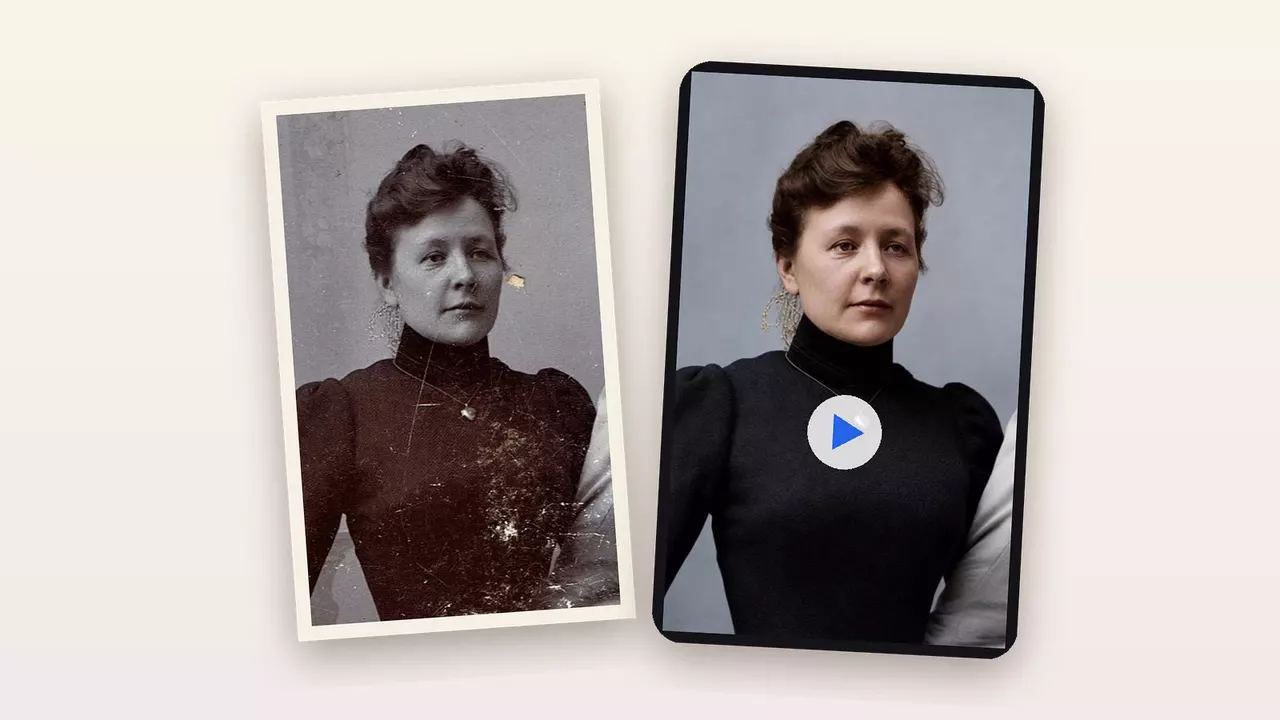
A cousin posts Great-Grandma in the family chat, and she blinks. Then she smiles. Half the family cries. One aunt asks for it to come down.
You can get the tears without the takedown. A good animated photo is small and gentle: a clear portrait, a breath and a blink, checked by you and shown to the closest family before anyone else sees it.
The short version
- 1. Pick a clear photo. One or two people, faces big, sharp and turned toward the camera.
- 2. Check the repaired face. Pause on the first frame. If it doesn't look like them, the rest won't either.
- 3. Keep the motion small. A breath, a blink, maybe the start of a smile.
- 4. Watch it to the end, then ask. Trim anything that doesn't look like them, and let the closest family see it first.
Every movement is a guess
A photo caught a fraction of a second. There's no turn of the head behind it, no laugh, no way she held her mouth when she talked. So the AI looks at the face and invents a few seconds of the kind of motion people usually make.
The first popular tool made this almost literal. When MyHeritage launched Deep Nostalgia in 2021, each animation followed a prerecorded video of real gestures, and most of the people in those videos were the company's own employees (MyHeritage). The smile on your ancestor's face came from someone at the office.
Newer tools don't copy one actor, but the idea holds. The clip shows what a person like her might do. That sounds like a downside, and it's also the key to doing this well: the less the AI has to invent, the more the clip looks like her.
Start with the right photo
The photo you pick decides most of the result. The best candidates have a few things in common:
- Faces big in the frame. A head-and-shoulders portrait gives the AI plenty to work with. A face the size of a fingernail at the back of a group shot gets mostly invented.
- Facing the camera, eyes open. A blink and a breath look natural on a face that's already looking at you. A profile has to turn to do much of anything.
- Damage away from the face. Scratches on a dress or the background usually repair cleanly. A crack through an eye or a missing chunk of cheek means the repair is guessing before the animation even starts.
Whatever the repair changes, the clip animates. So before you judge the motion, pause on the first frame and compare that face with the original. Our guide on whether AI restoration changes faces shows what to compare.
Small motion looks like them
When Deep Nostalgia came out, a genealogy forum couldn't make up its mind. “Solidly in the uncanny valley for me,” wrote one person. Another called it “almost spooky, seeing someone who's been dead for nearly fifty years blink and seem to look right at you” (r/Genealogy).
The spooky moments nearly always come from big movement. A head turn makes the AI draw a cheek and an ear nobody photographed. A wide grin hands your stern grandfather a smile he may never have made. A breath or a slow blink barely needs to know anything about her, so there's little room for it to go wrong.
Watch it to the last second
Our animate old photos tool is built for the small end of that dial. It repairs the photo first, then adds a breath, a blink or a smile starting. Here's what it made from a scratched 1907 portrait on the first try.
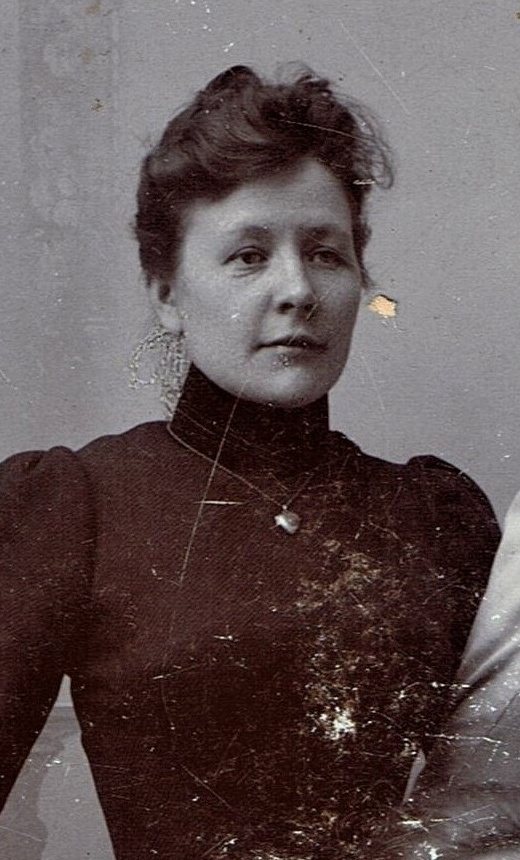
The photo, about 1907
The 5-second clip
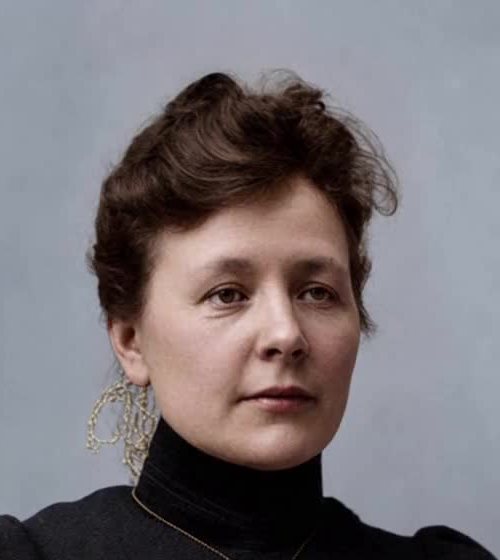
Keep: the opening
Calm, mouth closed, still the woman in the print.
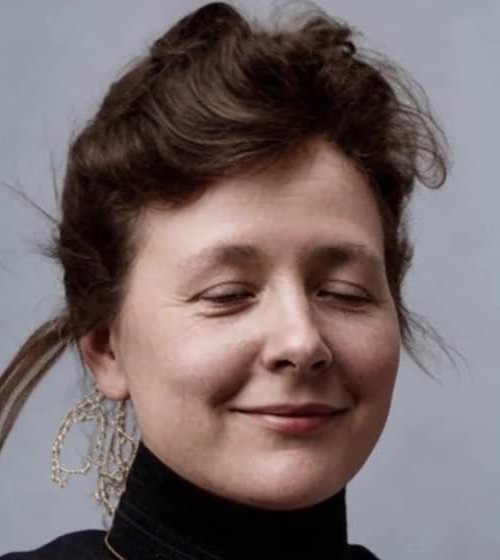
Watch for: the end
Eyes closing, a bigger smile, a lock of hair the photo doesn't have.
One of the four Wallin daughters, Nyköping, Sweden, about 1907. Photo by Carl Jette, public domain (Wikimedia Commons), cropped. Restored and animated with our tool on the first try.
For the first few seconds she breathes and shifts a little, and the face holds. Then, in the last couple of seconds, she closes her eyes into a bigger smile than the photo suggests, and a loose lock of hair blows in that the photo doesn't have.
That's the kind of thing to look for, and it tends to show up near the end, the point furthest from the one real frame. If you spot it, trim the clip to the part that looks right. The Photos app on an iPhone and Google Photos on Android can both trim a video. Or run it again for a different take, which costs another clip's credits.
The repair also added color here, and that's a guess too. With your own photos, ask someone who knew them whether the hair and skin look right.
Ask before you share
Remember the aunt in the family chat? Nobody did anything terrible. The clip just skipped the step where someone asked her.
Show it first, on your own phone, to whoever knew them best: the widow, the oldest child, the last sibling. A great-great-grandmother nobody remembers is different from a dad who died last spring, so the closer the loss, the slower you go. A private message to a few cousins is also very different from a public post that strangers can save.
The photo stays the true record. The clip is a tribute made from it, and the family decides where it goes. If you share it, say it's animated, so a great-grandchild decades from now doesn't mistake the smile for a memory.
Planning a service? A still photo on the easel is the safe choice, and a clip in the slideshow is one to clear with the closest family first. Our funeral photo guide covers getting the still ready in time.
Trying it with our tool
Check your starting point before you spend anything. The photo restorer is free to try without an account, up to two photos a day, so you can see how much of the face the AI has to fill in before you spend credits on a clip. Those free previews carry our watermark.
Animating needs a free account and 30 credits per clip. A new account gets 20, and credit packs are only sold to plan members, so in practice it needs a paid plan. You get a 5-second clip in about 2 to 3 minutes, your credits come back if it fails, and the clip downloads without a watermark.
Make a small, gentle clip
Upload a clear portrait, let it repair and add a breath and a blink, then watch it to the end before you share. Needs an account and credits.
Quick questions
Can I animate old photos for free?
Not with our tool. A clip costs 30 credits and a new free account starts with 20, so in practice it needs a paid plan. You can try the repair step free first and check the face.
Can I make an old photo talk?
Ours doesn't. The clips are silent, with small movements. Putting words in someone's mouth is a much bigger thing to ask the family about.
Is it disrespectful to animate someone who has died?
That's for the family to decide, not the tool. A small, private clip the closest relatives agreed to is a tribute. A big public one nobody was asked about is where people get hurt.
Images: a daughter from the Wallin family portrait (Nyköping, Sweden, about 1907) by Carl Jette, public domain via Wikimedia Commons, cropped, then restored and animated with our tool. Videos: ours, made with the restored portrait above. The flipbook video uses the same portrait, our restore of it, and 28 frames sampled from the clip our tool made. The ring animation reuses the same animated clip; the rings, phone, tags and hands are illustrations (hands AI-generated).
Try it on one of your own photos
Most of our photo tools have a free version. Upload a picture and see what it does before you decide anything.