Old Photo Restoration Prompts for ChatGPT and Gemini
AI restorers, ChatGPT and Gemini included, redraw the whole photo, so a good prompt names what must stay the same. Three prompts to copy, and how to check.
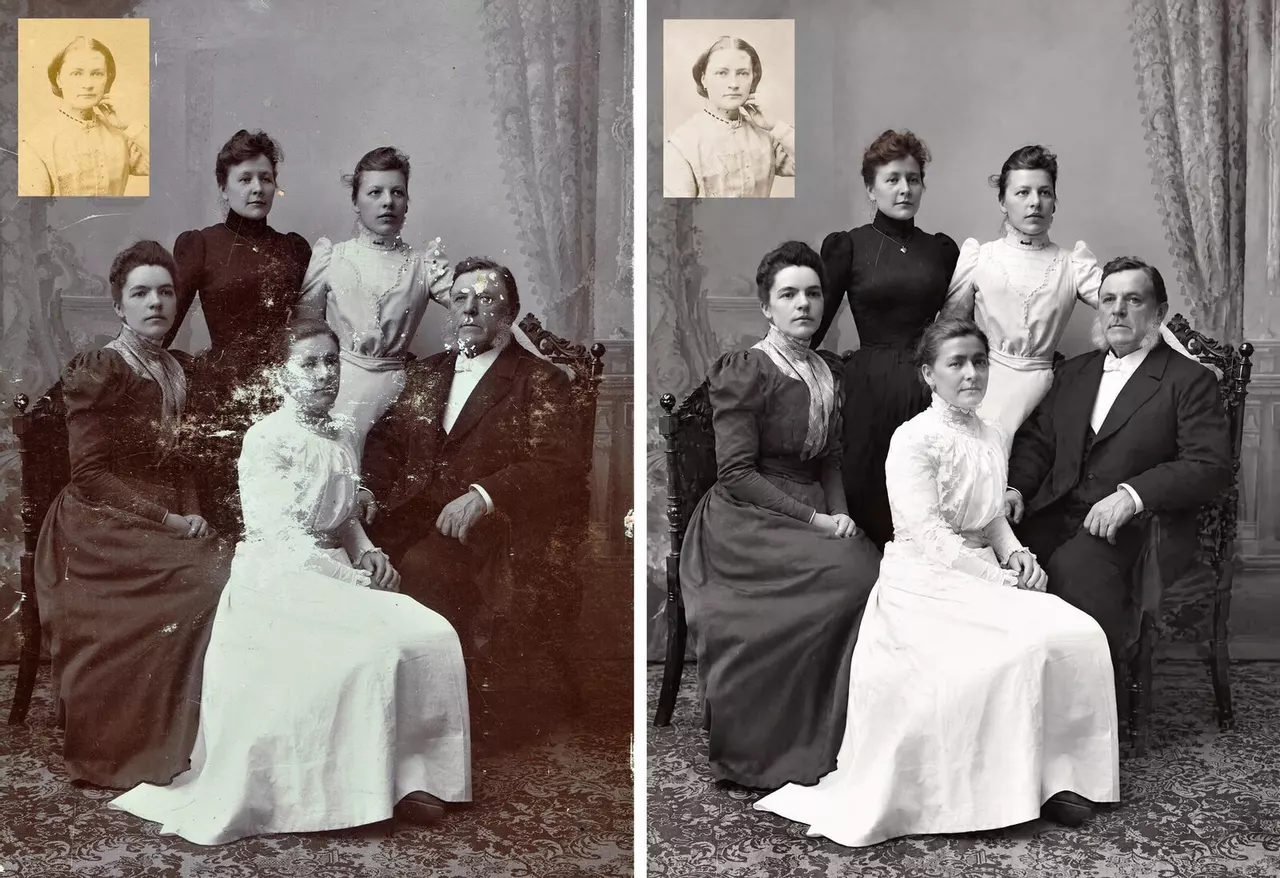
Above: a family portrait from about 1907, before and after a restore with our own photo restorer, not a chatbot.
You saw it on TikTok: a giant “magic prompt” that turns any old photo into a crisp studio portrait. You pasted it into ChatGPT with Grandpa's wedding picture. What came back was sharp and lovely, and somehow not quite Grandpa. His shoes were different too.
Here's what happened. AI restorers, the chatbots and ours alike, don't dab at the scratches. They draw the photo again, so parts that were never damaged can change too. The prompt's real job is to name what must stay the same, and your job is to check that it did.
The short version
- 1. Keep it short. A few clear sentences beat a page of camera settings.
- 2. Name what must not change. Faces, clothes, background, and the little things you care about.
- 3. Check it against the original. Anything you didn't name can drift.
Three prompts to copy into ChatGPT or Gemini
Start with the best copy you have: a flat scan (here's what DPI to scan at), or a phone photo taken without glare. Upload it, then paste one of these.
1Repair only
Fix the damage, change nothing else.
Restore this old photo. Remove the scratches, dust, creases and fading. Keep every face, expression, hairstyle and piece of clothing exactly as it is. Keep the background, the framing and every object where it is. Don't add or remove anything. [Keep the white mantel and the small portrait in the corner.]
2Repair and add color
For a black-and-white photo.
Restore and colorize this black-and-white photo. Remove the scratches, dust and fading. Keep every face, expression, hairstyle and piece of clothing exactly as it is, and keep the background and framing. Use natural, realistic colors. [Grandpa's eyes were blue. Grandma's dress was dark green.]
3Fix one thing
When the rest is already fine.
Remove [the crease across the top left corner]. Change nothing else in the photo.
Swap the [highlighted] parts for your own photo, or delete them.
Faded color print? Use the first prompt and add “remove the orange color cast.” Here's why old photos turn orange in the first place.
Why the shoes changed: the whole picture gets painted again
It's easy to picture an AI restorer as a careful hand with a tiny brush, dabbing out each scratch. A better picture is a skilled painter copying your photo onto a fresh canvas. The copy can be very close, but nothing in it is guaranteed to match, including the parts that were fine.
What the photo shows clearly usually survives. What's small, blurry or never mentioned is up for grabs. Even OpenAI says its editor treats a marked area as guidance and may not follow its exact shape. And Google's own example prompt for editing one part of a photo ends with “keep everything else in the image exactly the same.” If the makers write that line, you should too.
Here's a real case. Someone shared a “stunning” Gemini restoration on Reddit along with their prompt, nearly 300 words long. It locked the nose, the eye shape, the mouth and the expression, and even named a camera and lens. One of the top replies pointed out that the shoes were wrong and the mantel was no longer painted white like in the original. The prompt never mentioned either.
Ours does it too
This isn't only a chatbot thing. Our own photo restorer draws the whole image again too. It's told to keep the people and the layout as they are, and usually it does. But on this family portrait from 1907, the cheaper setting painted curtain right over the small photo of the family's late mother.
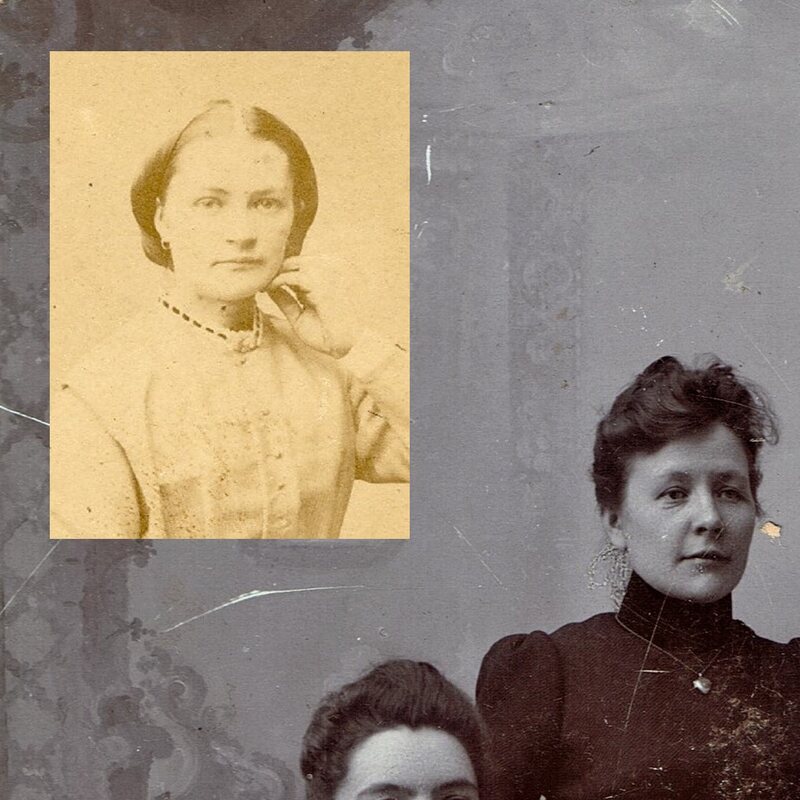
The original
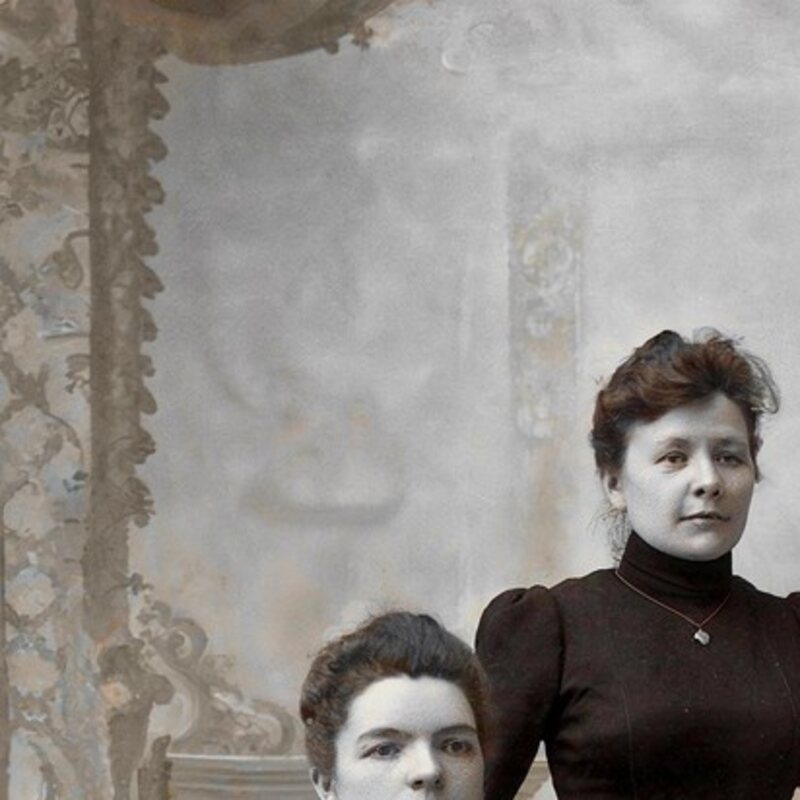
Cheaper setting
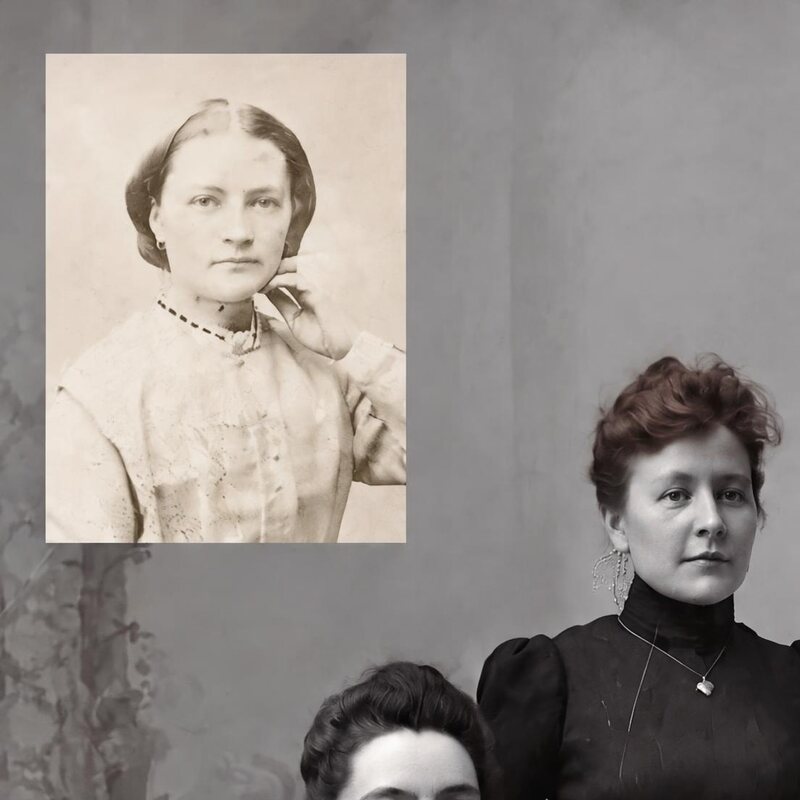
High setting
On a faded slide from 1972, one setting decided a hazy sky had been clear blue. Another added white smoke rising from the chimneys. Lovely, and not what was there.
Why a longer prompt doesn't help
The viral prompts are long because long feels thorough. But the AI only has two things to go on: what's in your photo, and what you tell it about your photo.
“Medium-format camera,” “80mm lens,” “8K detail” and “cinematic contrast” say nothing about your grandfather. They describe a glossy studio picture, which isn't the one you have. In that same thread, the person who spotted the wrong shoes posted their own result from two plain sentences: “Please restore this photo. Pay attention to detail and be meticulous.”
What does help is what only you know. Which parts must not move. Which blur is a brooch and which is a scratch. Facts a gray photo can't show, like eye color or the color of a dress.
Check it against the original
Whatever tool you use, keep the original next to the result. It's the only proof of what changed. Put them side by side and go through three things.
- 1Count. The same number of people, and the same things on the wall and the table.
- 2Look low and small. Hands, shoes, jewelry, buttons, and anything with writing on it.
- 3Look at every face. Then show it to someone who knew them.
If a face comes back as someone else, a better prompt rarely fixes it. The less of a face survives in the original, the more the AI has to invent. Our guide to whether AI restoration changes faces shows how to tell, and what to do about it.
Each new try is another full repaint. Compare every version with the original, not with the last try, or small changes pile up without you noticing.
When a restorer is easier than a chatbot
A dedicated restorer skips the prompt. Our photo restorer is already told to keep the people and the layout as they are, and nobody can type instructions into it, so there's nothing to get wrong. Pick “Restore only” to fix the damage, or “Restore and add color” for a black-and-white photo. If you're signed in, leave quality on High. In our tests, the cheaper Normal setting changed more, like that missing portrait.
Chatbots are handy for one targeted change, like “remove the date stamp in the corner and change nothing else.” That kind of request is exactly what their editing tools are built around. Our AI image editor takes the same kind of plain-English request, with a free account.
You can try the restorer free without an account, up to two photos a day. Free results from both tools are watermarked previews, fine for checking the repair and showing the family. Clean, full-size downloads come with any paid plan.
Restore a photo without writing a prompt
Upload your best copy, then put the result next to the original. Try it free; clean downloads are on paid plans.
Images: the Wallin family, about 1907, by Carl Jette (inset photographer unknown), Wikimedia Commons, public domain. Beach slide: Marc St. Gil, 1972, DOCUMERICA, National Archives 546220, public domain. Restored with our tool, first results, October 2026; the videos use the same portrait and slide and our tool's own restores of them. Illustrations and videos: ours.
Try it on one of your own photos
Most of our photo tools have a free version. Upload a picture and see what it does before you decide anything.